 Ppijuk
A desktop calendar for Windows that shows your to-dos by date
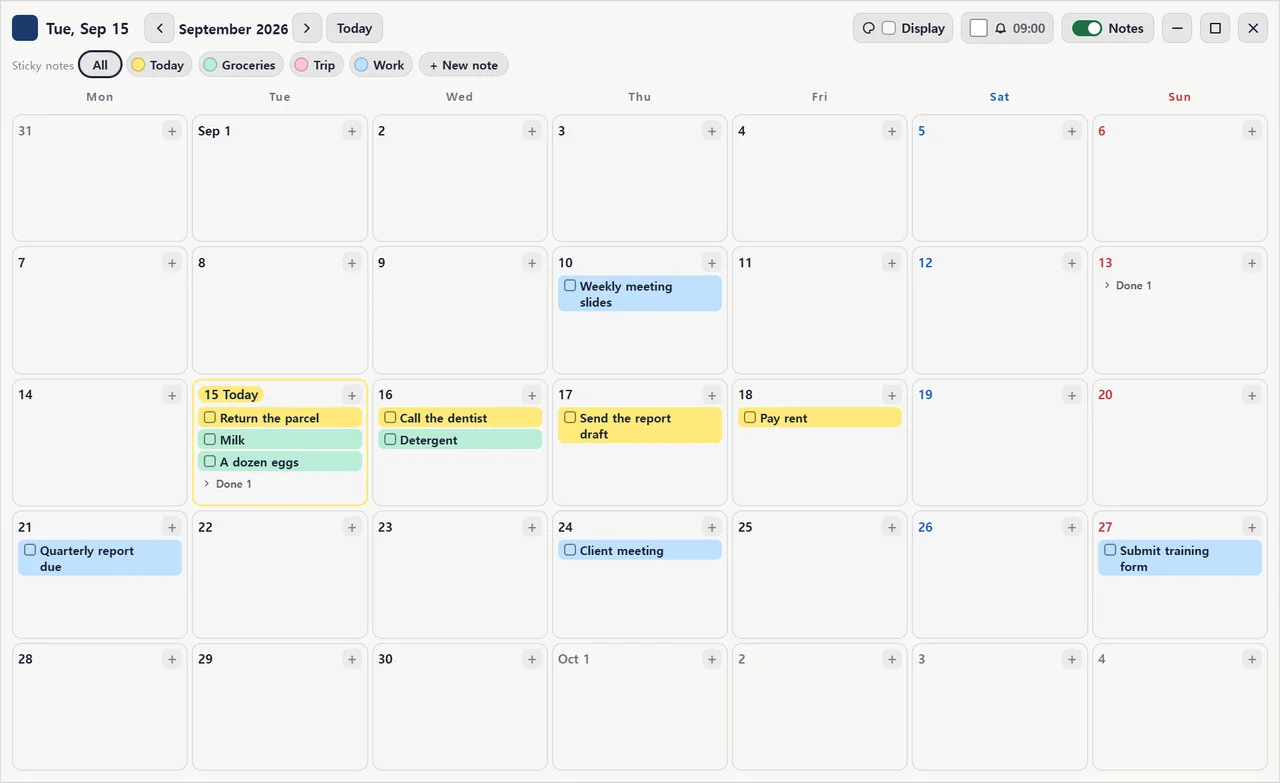
If you want a desktop calendar for Windows that stays on your wallpaper and shows your to-do list by date, use the desktop calendar in Ppijuk. It sits behind your other windows, right on top of the wallpaper, shows each day’s to-dos as small chips, and can remind you before things are due. It is free.
A calendar that lives on your wallpaper
The calendar normally sits behind your other windows, right on top of the desktop wallpaper. It comes forward while you click and use it, and goes back as soon as you click somewhere else, so it never hides the window you are working in. Minimize your windows and there it is. Drag its edges to resize it and its header to move it; it remembers where you left it.
Pick one of ten background colors and set the opacity so the calendar blends with your wallpaper. Saturdays and Sundays are shown in their own colors, so weekends stand out.
Double-click the Ppijuk tray icon to turn the calendar on or off.
Add to-dos straight onto dates
Click the “+” in the top-right corner of a day to open an input box in that cell. Type a to-do and press Enter; it appears as a chip, and the box stays open for the next one.
Drag a chip to move it to another day, and tick it to fold it under Done. Right-click a chip to move it to a different note.
The calendar and the sticky notes on the right edge share the same to-dos. Change a to-do’s date badge on a sticky note and it moves on the calendar; add a to-do on the calendar and it appears on a sticky note with its date.
The sticky-notes row above the calendar filters what you see: click All, or click one or more notes to show only their to-dos. Drag the note chips to reorder them, or right-click one to rename, recolor or delete it.
Get reminded before things are due
- In the calendar header, tick the checkbox next to the bell button to turn reminders on.
- Click the bell button to set a reminder time. At that time, a Windows notification lists to-dos that are due today or overdue.
- Choose an advance reminder (on the due date, 1 day, 3 days or 1 week before) to hear about a to-do earlier.
- Set a final reminder to get one more notification on the due date, a chosen number of hours before midnight.
The same calendar on your phone
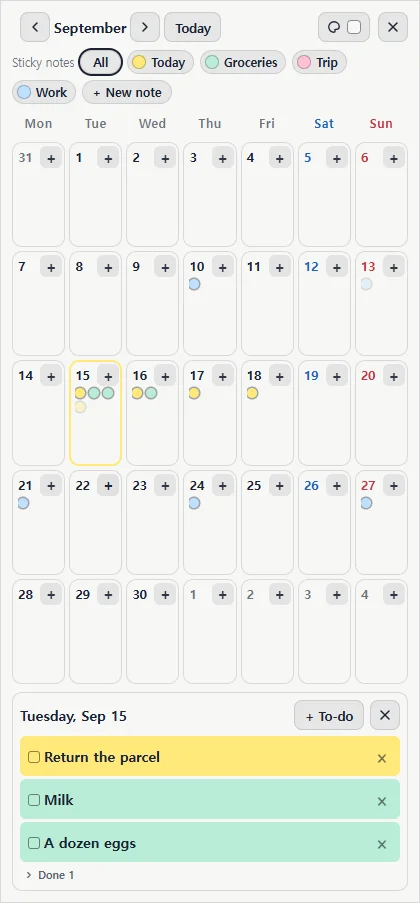
The Android app and the web version open the same calendar. Because phone screens are narrow, each day shows colored dots instead of chips; tap a date and that day’s to-dos appear in a list below.
To add a to-do to a date, tap the “+” in its cell or “+ To-do” in the list. Reminders come from the Windows app only.
Frequently asked questions
Does the calendar stay on top of my other windows?
No. It stays behind them on the wallpaper. It only comes to the front while you are clicking and typing in it, and goes back when you click anywhere else.
Can I add recurring events?
No. Ppijuk has no recurring events. Each to-do has a single date; when a task comes up again, add it to that day as a new to-do.
Can I change how the calendar looks?
Yes. On the PC, the Display button (palette icon) in the calendar header offers ten background colors and an opacity setting. On the phone you can change the background color only.
How do I get the calendar back after closing it?
Double-click the Ppijuk tray icon, or right-click it and tick “Desktop calendar” in the menu.
Get Ppijuk free
The Windows 10/11 installer, the Android app and the web version are all free.