 Ppijuk
A free to-do list app for Windows that stays on your desktop
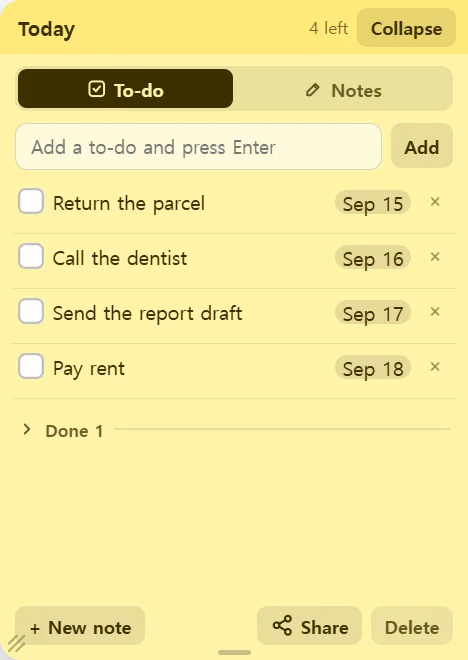
If you want a to-do list app for Windows that is always in view, use the To-do mode in Ppijuk. You type tasks into a note docked to the right edge of the screen and tick them off as you go; every new to-do is dated today and shows on the desktop calendar, and unfinished to-dos whose date has passed come up in the reminder as overdue.
Add tasks and tick them off
Open a note, type a task into the input box and press Enter to add it as a new line. Long tasks wrap onto more lines instead of being cut off.
Tick a task’s checkbox and it folds into the Done section at the bottom of the list. Open that section to see what you finished, and click Undo to put a task back on the list.
Drag a task up or down to change its order, and click × to delete it.
Due dates and reminders
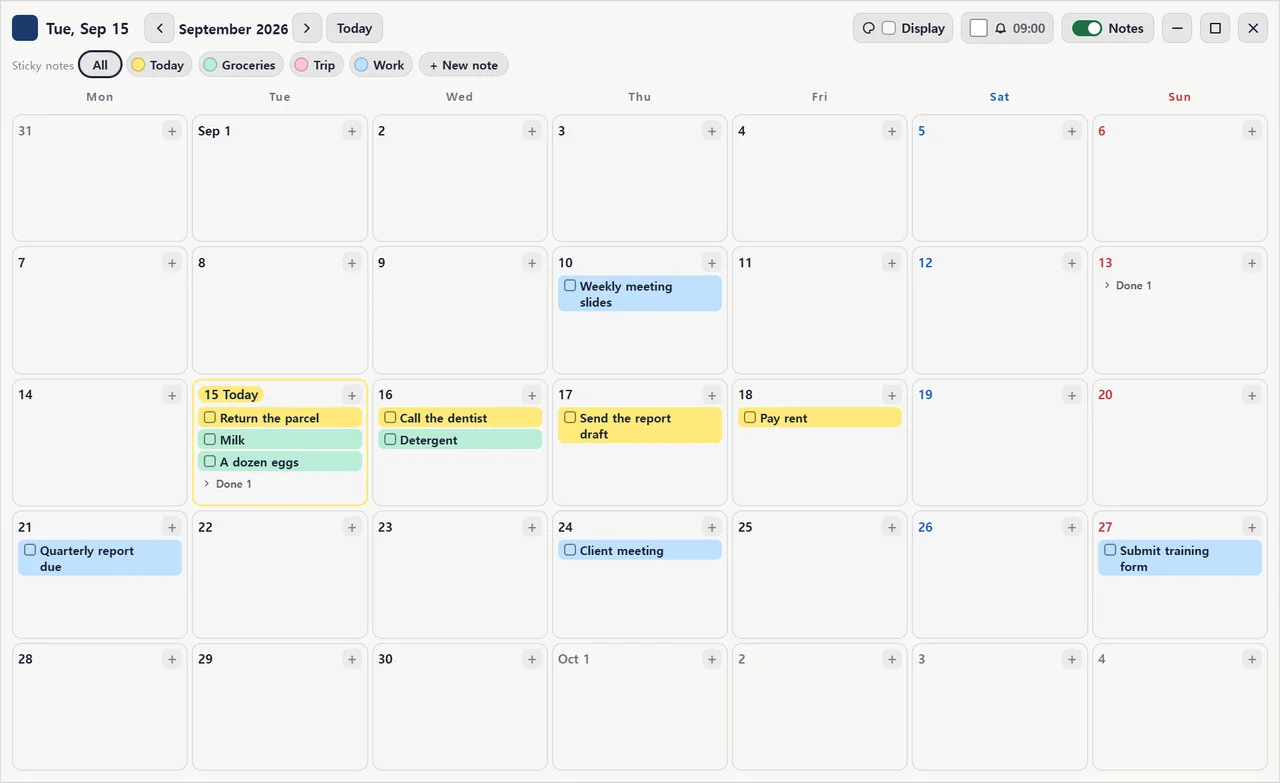
Every new to-do automatically gets today’s date as a badge, so it shows up on today’s square in the desktop calendar. Click the badge to change it to a due date, and the to-do moves to that day on the calendar.
Turn on reminders in the calendar and, at the time you choose, a Windows notification lists the to-dos that are due today or overdue. You can also add advance reminders 1 day, 3 days or 1 week before the due date.
Split your list across notes
- Create separate notes such as Work, Personal and Groceries with “+ New note”.
- Give each note its own color so you can tell them apart from the tabs alone.
- Each folded tab shows how many to-dos are left on that note, so you can see at a glance where work is piling up.
- To move a to-do to a different note, right-click its chip on the desktop calendar and choose the note.
Frequently asked questions
Can I remove the date from a to-do?
No. Every to-do has a date: today, when you add it. You can change it to any due date with the date badge, but you cannot clear it.
Does it work offline?
Yes. Notes, to-dos, the calendar and reminders all work without an internet connection. You only need to be online to sync with other devices and to open share links.
How do reminder notifications work?
Reminders come from the Windows app as Windows notifications. Tick the checkbox next to the bell button in the calendar header to turn them on, then click the bell to set the time, advance reminders and a final reminder.
Will my PC checklist show up on my phone?
Yes. Sign in with the same Google account on your PC and on the Android app or web version, and a task you tick off on the PC is ticked on your phone as well.
Get Ppijuk free
The Windows 10/11 installer, the Android app and the web version are all free.