 Ppijuk
Sync notes between PC and phone with one Google sign-in
To sync notes between PC and phone, sign in to Ppijuk with the same Google account on each device. The Windows app, the Android app and the web version then show the same notes, and a change made on one device appears on the others. Syncing is free.
How syncing works
Once you sign in, your notes are saved to your Google account, and every PC, phone or browser signed in to that account shows the same notes. While the app is open on both devices, a change usually appears right away, and always within a minute.
Only you, signed in to your account, can read your synced notes. If you never sign in, your notes stay on that device and never leave it.
Everything syncs: to-dos, free-form notes, note names and colors, and dates. A to-do you add on the PC desktop calendar shows up on the same date in the calendar on your phone.
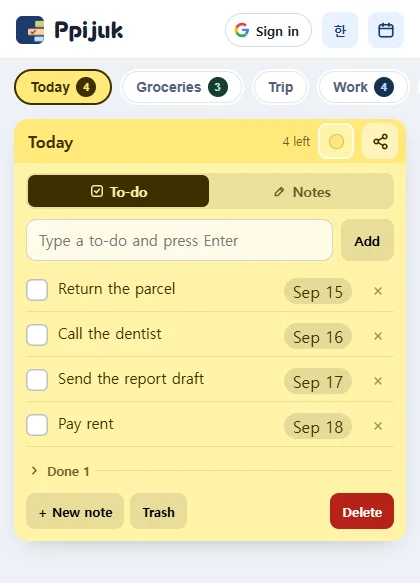
Syncing is not the same as sharing
Syncing keeps your own devices in step. To show one note to someone else, create a share link instead: use the Share button on the Windows app or the share icon on your phone. The other person opens the note in a browser without installing anything, and can tap “Save to my notes” to keep a copy.
Set up sync
- Install Ppijuk on your PC. On first launch a sign-in window appears; click “Sign in with Google”. You can also sign in later from the tray icon menu.
- On your Android phone, install Ppijuk from Google Play and tap “Continue with Google” using the same account.
- On an iPhone, a Mac or another computer, open the web version at ppijuk.ssemgong.com/app and sign in with the same account.
- Add a to-do on one device and watch it appear on the other.
Frequently asked questions
Do I need an account to use Ppijuk?
No. Signing in is optional, and Google is the only sign-in option. Without signing in, your notes stay on the device and never leave it; the installed Windows app only checks for, downloads and installs its own updates.
Can anyone else read my synced notes?
No. Synced notes can only be read by you while signed in. If you want someone to see a particular note, send them a share link for that note.
What happens to my notes when I sign out?
Signing out only signs out the device you are on. Your notes are not deleted from the server, and they come back when you sign in again.
My devices show different notes. What should I check?
With the app open on both devices, changes usually arrive right away and within a minute. If they still differ, make sure both devices are signed in with the same Google account and are connected to the internet.
Get Ppijuk free
The Windows 10/11 installer, the Android app and the web version are all free.